

You’re viewing the v2 beta documentation. The API is in active development - breaking changes may occur before final release. For production use, switch to v1 using the version selector above.
Account Switcher
If you belong to multiple accounts (e.g. a Buyer account and a Seller account), use the account switcher in the top-right corner to switch between them or add a new account.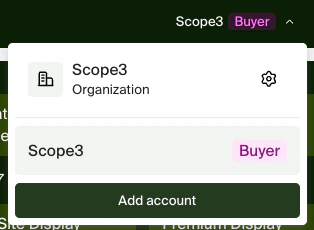
Buyer Homepage
After logging in as a Buyer, you’ll see the buyer homepage with quick-access cards for campaigns, advertisers, API keys, and member management.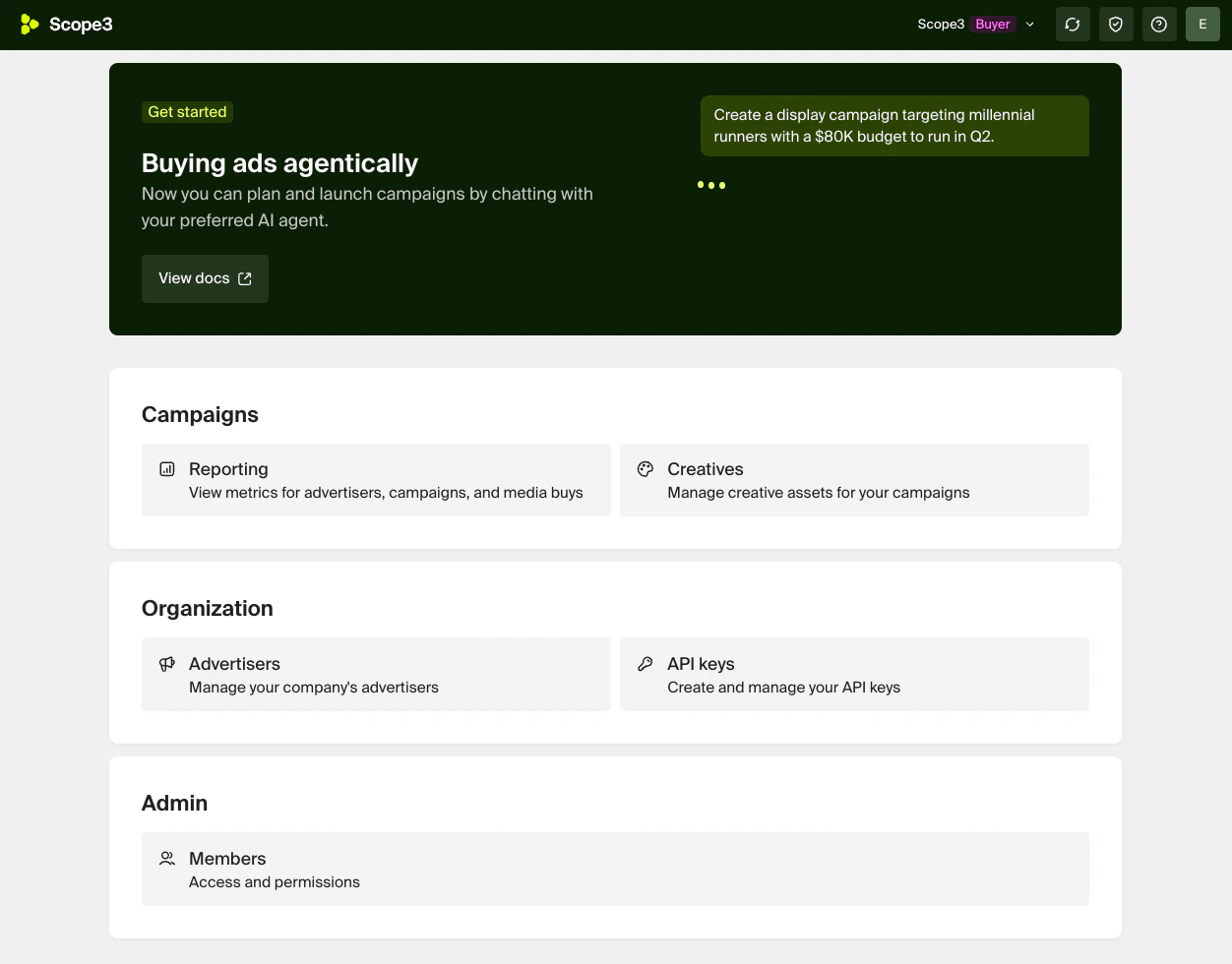
- Get started with documentation and quickstart guides
- View reporting for campaigns and media buys
- Manage creatives for your campaigns
- Manage advertisers for your organization
- Manage API keys for your integrations
- Manage members and permissions
Seller Homepage
After logging in as a Seller, you’ll see the seller homepage with quick-access cards for your storefront, campaigns, API keys, and member management.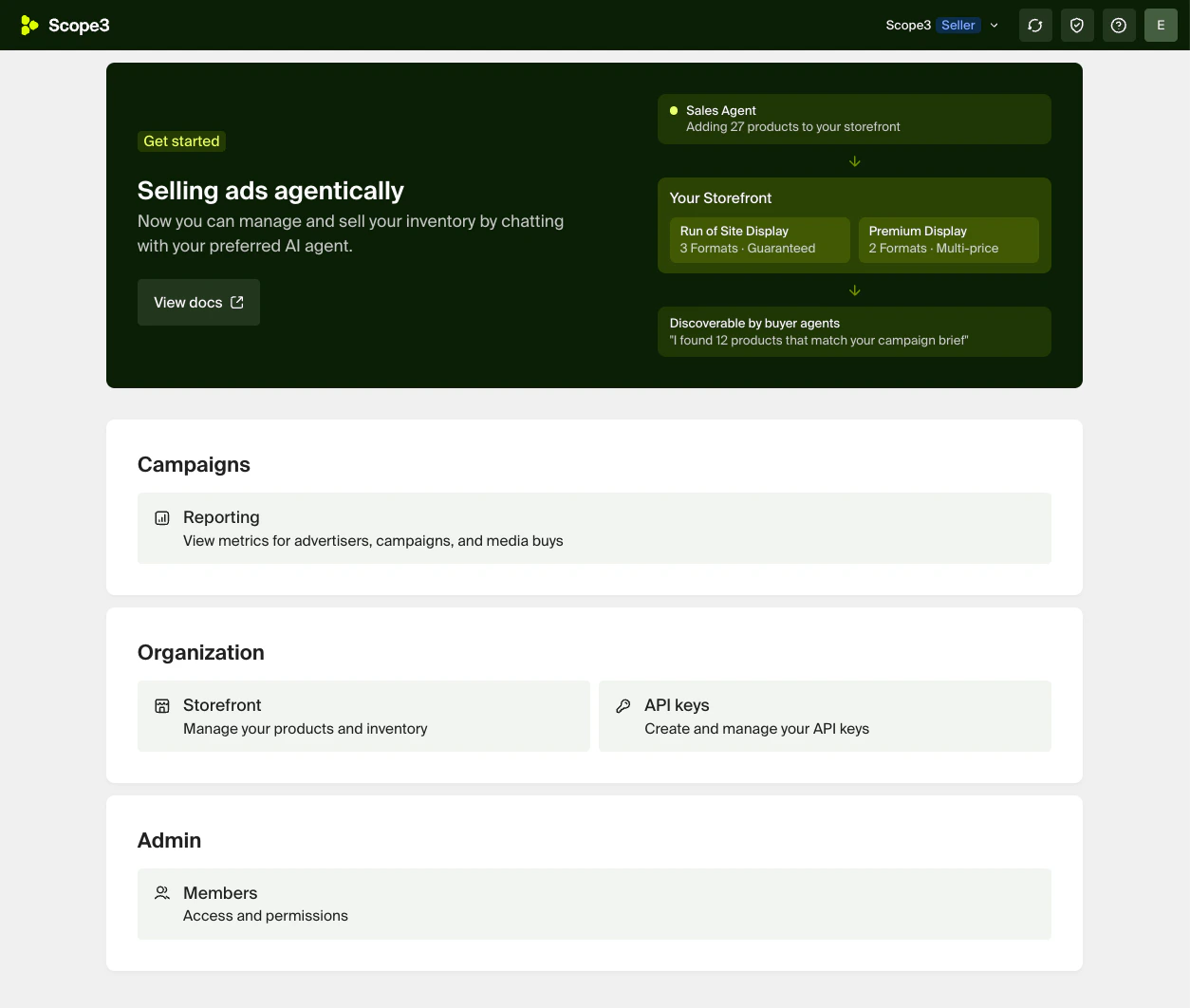
- Get started with documentation and quickstart guides
- View your storefront and manage products and inventory
- View reporting for campaigns and media buys
- Manage API keys for your integrations
- Manage members and permissions
API Keys
Click Manage API keys from the dashboard to view your existing keys.
Creating an API Key
Click + Create API Key to open the creation form.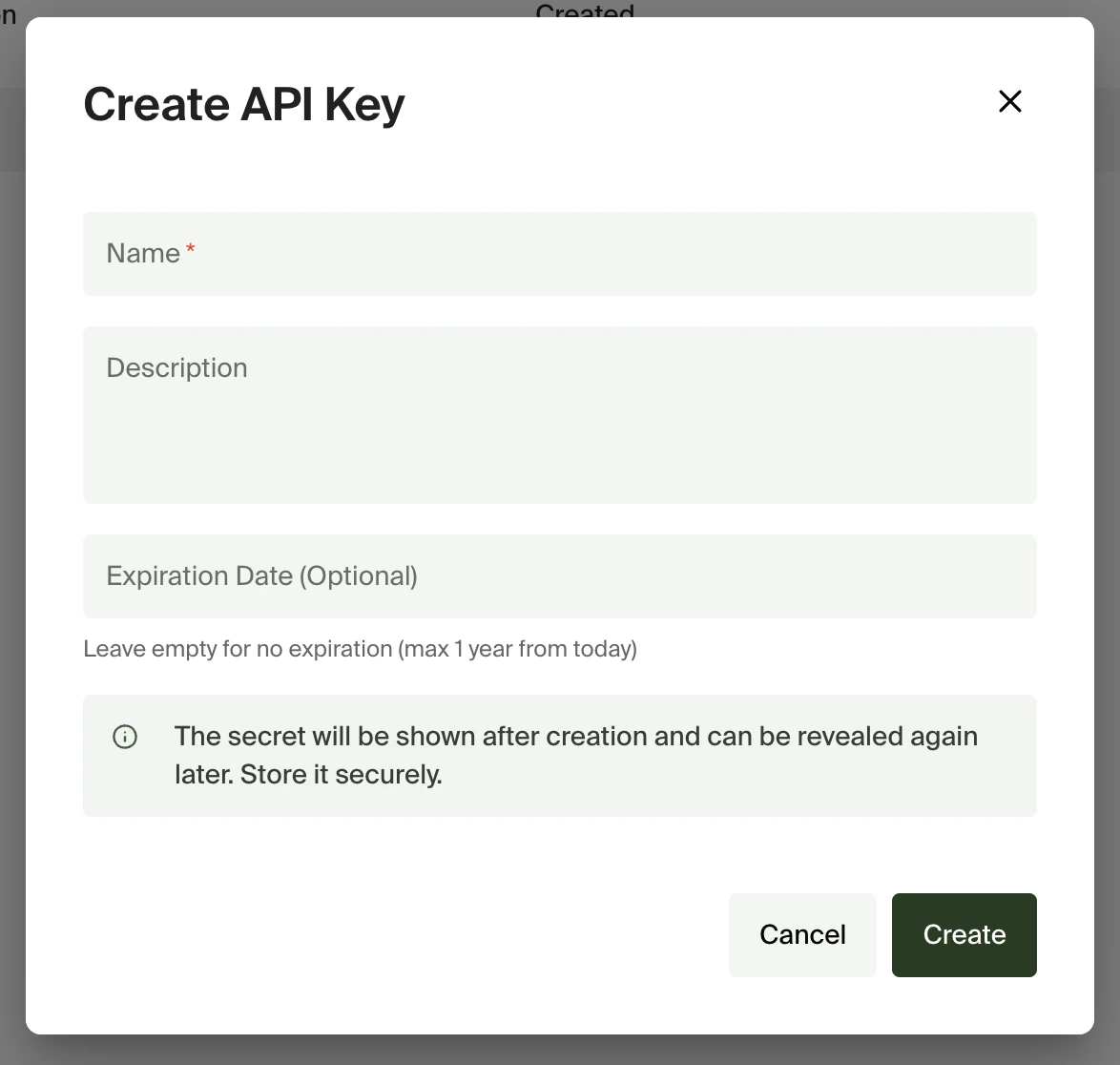
| Field | Required | Description |
|---|---|---|
| Name | Yes | A descriptive name for the key |
| Description | No | Additional context about the key’s purpose |
| Expiration Date | No | Optional expiry date (max 1 year from today). Leave empty for no expiration |
Advertisers
Click Manage advertisers from the dashboard to view and manage advertiser accounts.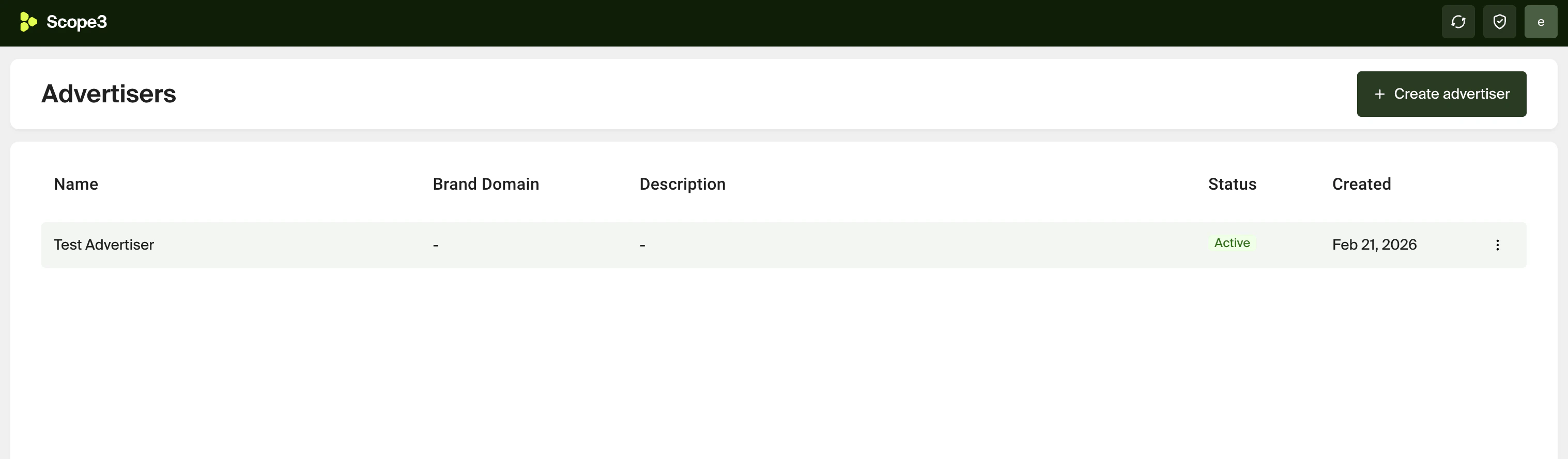
Creating an Advertiser
Click + Create advertiser to open the creation form.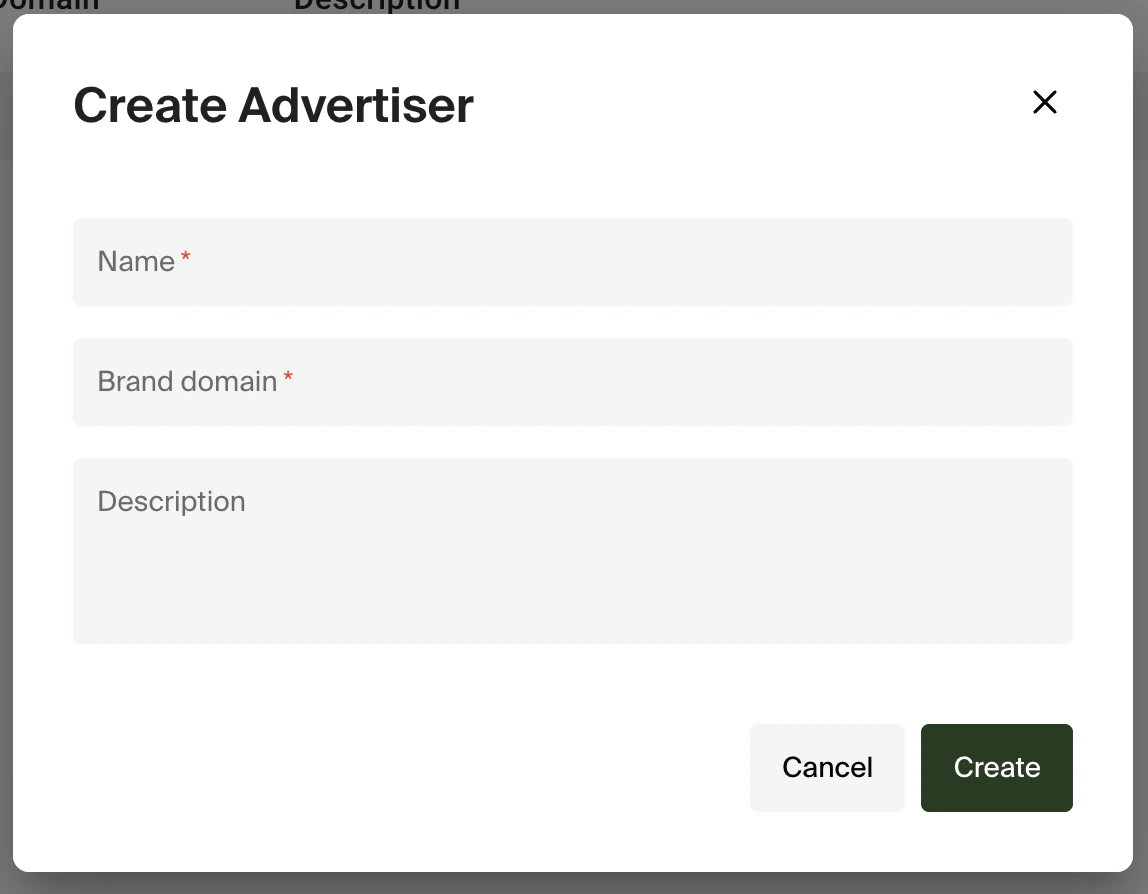
| Field | Required | Description |
|---|---|---|
| Name | Yes | The advertiser’s name |
| Brand domain | Yes | The advertiser’s brand domain |
| Description | No | Additional context about the advertiser |
Member Management
Click Manage members from the dashboard to view and manage your organization’s members.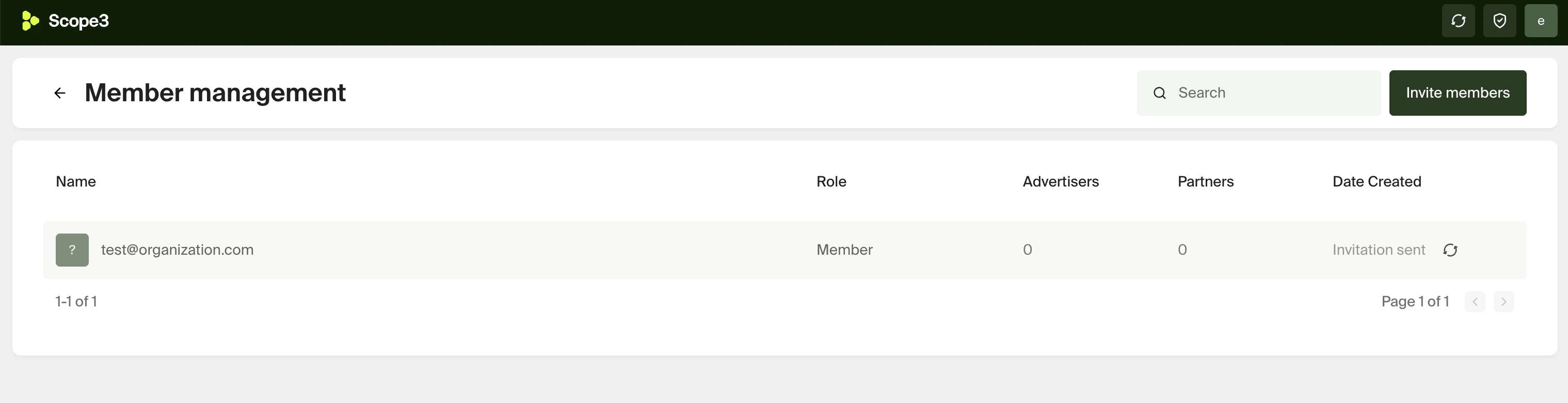
Inviting Members
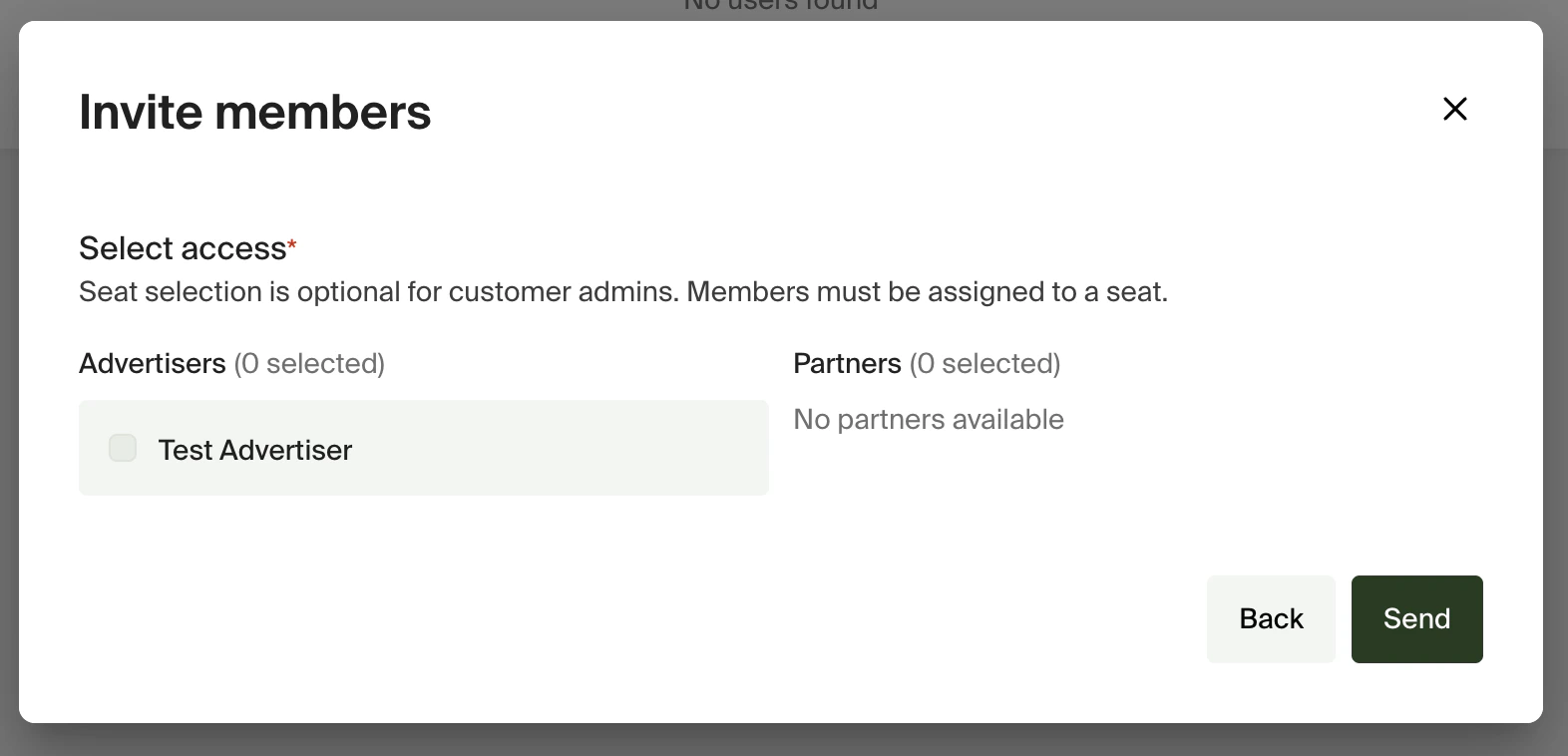
Click Invite members to add new users to your organization. Step 1: Enter email and role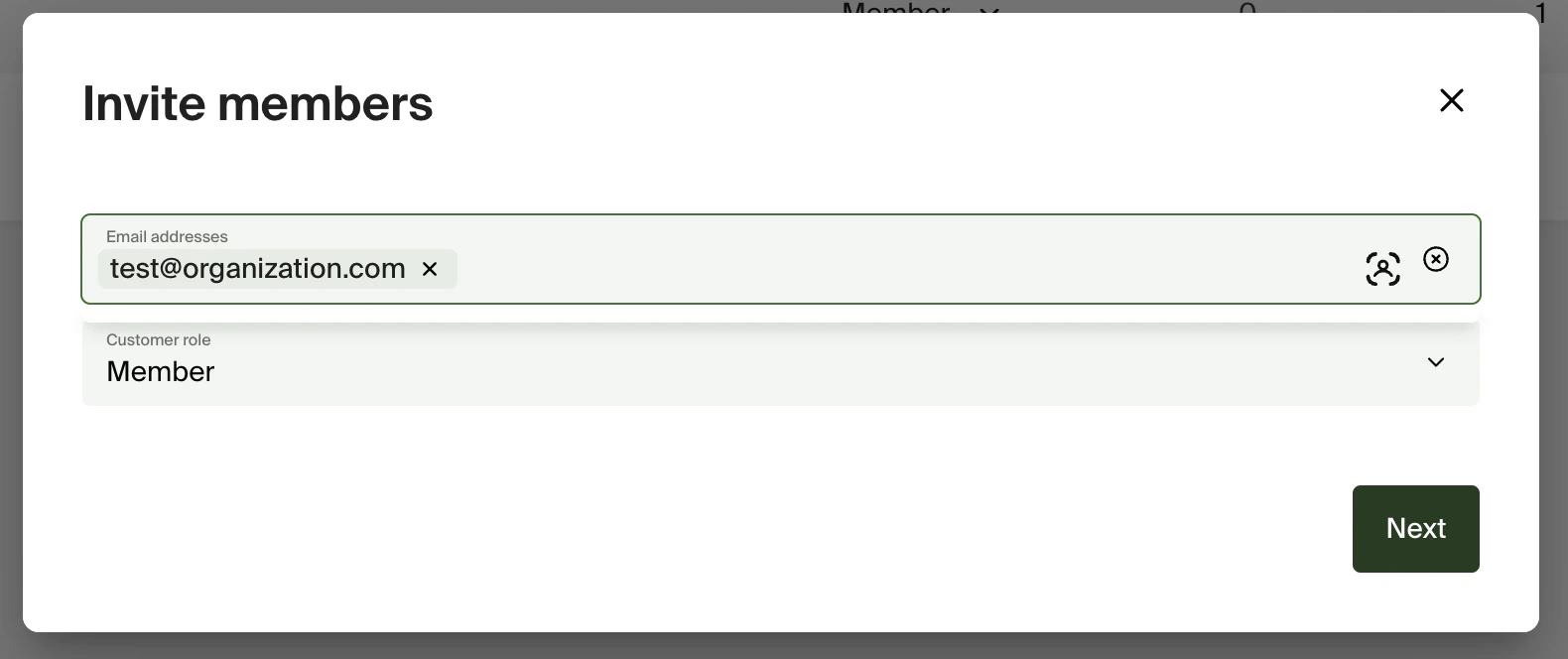
- Enter one or more email addresses
- Select a Customer role:
- Admin - Full access to all Advertisers and Partners by default. Seat selection in the following step is optional.
- Member - Limited access. You must assign specific Advertisers and Partners in the next step.
Next Steps
Authentication
Learn how to use your API key to authenticate requests
Quick Start
Get started making API calls with your key